StendhalManual: Difference between revisions
imported>Hendrik Brummermann |
imported>Hendrik Brummermann No edit summary |
||
| Line 1: | Line 1: | ||
=Introduction= |
=Introduction= |
||
==What is Stendhal?== |
|||
Are you looking for adventure? Want to fight for riches? |
|||
Develop yourself and your social standing? Meet new people? |
|||
Do you want to be part of a brave new world? |
|||
{{:Stendhal Manual/Introduction}} |
|||
Stendhal is a full fledged multiplayer online adventures game (MMORPG) developed using the Arianne game development system. |
|||
Stendhal features a new, rich and expanding world in which you can explore towns, buildings, plains, caves and dungeons. |
|||
You will meet NPCs and acquire tasks and quests for valuable experience and cold hard cash. |
|||
Your character will develop and grow and with each new level up become stronger and better. With the money you acquire you can buy new items and improve your armour and weapons. |
|||
And for the blood thirsty of your; satisfy your killing desires by roaming the world in search of evil monsters! |
|||
Stendhal is totally platform independent, written using Java 1.5 and the Java2D environment. |
|||
So what are you waiting for?! A whole new world awaits... |
|||
==Why play Stendhal?== |
|||
# Stendhal is free! |
|||
# Stendhal is open source and by playing you help us improve it. |
|||
# Stendhal is a small download. |
|||
# Stendhal is a big world. |
|||
# A nice community. |
|||
# Lots of creatures to kill. |
|||
==Aims of Stendhal== |
|||
Stendhal aims to make you have a fun time. |
|||
Stendhal features a world in constant evolution, with tons of interesting quests to accomplish and thousands of friends to meet. |
|||
And the best of it is that it is a never ending game :) |
|||
==What do I need to play Stendhal?== |
|||
Stendhal is a ''Java'' game and works in any platform that is able to run the Sun Java JRE, that includes: |
|||
* Windows |
|||
* Linux |
|||
* MacOS |
|||
So you need at least [[http://java.com/ Java 1.5]] to run it. |
|||
Right now Stendhal won't work with GCJ, so if you are a developer with experience in GCJ, you may want to help porting Stendhal to SDLjava. |
|||
=Setting up the game= |
=Setting up the game= |
||
== Creating an account == |
|||
To create an account, just open the game and click on ''Create account''. |
|||
{{:Stendhal Manual/Setting up the game}} |
|||
http://arianne.sourceforge.net/wiki_images/createaccount_001.png |
|||
Now fill the fields: |
|||
* Choose your Stendhal server. If you are not sure about what to do, simply choose the default one. In case you want to connect to a different server, please enter it's hostname there. |
|||
* Port. Usually Stendhal servers runs at port 32160. |
|||
* Username. It is the name of your avatar in the Stendhal world. |
|||
* Password. Type in your password twice. It will secure your access to Stendhal, so choose a good one. |
|||
* Email. Just in case we need to reset the password or contact you. |
|||
Your account will be ready immediately. |
|||
http://arianne.sourceforge.net/wiki_images/createaccount_002.png |
|||
== Downloading the game == |
|||
You can run it directly using [http://arianne.sourceforge.net/jws/stendhal.jnlp Java Webstart] (this means you do not need to download anything, just click the webstart link and if Java is installed on your system the game will start) or you can download the compiled java program to your computer at http://sourceforge.net/project/showfiles.php?group_id=1111 |
|||
=Controls and Game settings= |
=Controls and Game settings= |
||
==Starting the game== |
|||
To launch Stendhal use [http://arianne.sourceforge.net/jws/stendhal.jnlp Java webstart] or by running the <b>stendhal-0.XX.jar</b> file that is in the stendhal download package. |
|||
http://arianne.sourceforge.net/wiki_images/manual_000.jpg |
|||
Click on the <b>Login to Stendhal</b> button and enter your account information.<br> |
|||
Be sure to choose the server where you created your account (the name will be the same as the site you went to to create the account in the first place. The default option is probably correct) and finally click on Login to Server.<br> |
|||
http://arianne.sourceforge.net/wiki_images/manual_001.jpg |
|||
A progress bar will appear and soon you will be connected to the world. |
|||
http://arianne.sourceforge.net/wiki_images/manual_002.jpg |
|||
If the server is down (not online) you will get an error message explaining this. In this case either try again later or create a new account on another server. |
|||
==Game screen== |
|||
http://arianne.sourceforge.net/wiki_images/manual_018.jpg |
|||
# Minimap<br>The minimap shows the actual position of the player with a cross. Minimap only shows the actual zone non walkable areas. |
|||
# Player's bag<br>This is the bag where you can store up to twelve items. If the bag closes and you want to open it again, click on settings Windows(6) and click on player inventory. |
|||
# Chat line<br>You write the text to talk to other players and npcs here. You can also write commands here. There is a basic help writing ''/help'' |
|||
# Dialogs log<br>Here are all the messages received in the current session stored (game messages and player messages). It is very useful for conversational proposes. |
|||
# Player's inventory<br>You can equip items as weapons, armors, legs, helmets and boots to obtain advantages. |
|||
# Settings window<br>Contains buttons to reopen the minimap, the player inventory and the player bag. |
|||
# Game area<br>All the gameplay happens here. |
|||
==Basic controls== |
|||
===Move=== |
|||
Use the <b>keyboard arrows</b> to move around on the Map. |
|||
http://arianne.sourceforge.net/wiki_images/manual_004.jpg |
|||
You must hold down the direction keys to make the character to move. Your character will collide with elements that exists on the world, like other players and walls. |
|||
Alternatively you can move by double clicking on an empty place of the game area. |
|||
You also collide with map borders. When you reach a map border your screen won't move any further and two things might happen: |
|||
* if an area exists next to the area you are in, you will move from your current area to the new area (you will be transfered to the new zone). |
|||
* if no area exists nothing will happen and you will simply collide and stop. |
|||
===Passing Through Doors=== |
|||
You can simply pass through the doorway by using the '''keyboard arrows'''. In the case that there is someone standing in front of the doorway and blocking it you still can pass through the door if you can get next to the door diagonally: just '''right click''' on the door and choose '''use'''. |
|||
===Moving With An Animal=== |
|||
If you have an animal following you such as a sheep, to change zones the animal MUST be within visible distance from your charater. To find out where your animal is, type <b>/where <name of animal></b> ... for example <b>/where sheep</b> |
|||
===Face=== |
|||
When attacking someone or talking to someone it is nice to face them. To do this press <b>Ctrl and a directional arrow</b> to face in that direction. |
|||
It is just an eye candy action as it has no effect on the game rules. |
|||
===Moving Items=== |
|||
During the game you will find or buy items such as swords and shields. To move these items around the world, use the <b>left click and drag</b> to the place you want them to be. You need to be next to the item. To drop a smaller amount of a stackable item use the /drop command. Say you have 2000 money and want to give 100 money away: <code>/drop 100 money</code> |
|||
===Managing Inventory=== |
|||
You can manage your inventory by dressing items, dropping them to floor or by storing them on your backpack. On all the cases the procedure is the same: click on the item and drop it to the desired position. |
|||
Keep in mind that you must be near an item to equip it and that you can't drop it further than 8 positions from you. |
|||
http://arianne.sourceforge.net/wiki_images/equipitems_000.png |
|||
Drag and drop the item in inventory slot you want. |
|||
http://arianne.sourceforge.net/wiki_images/equipitems_001.png |
|||
And you have equipped it. |
|||
http://arianne.sourceforge.net/wiki_images/equipitems_002.png |
|||
You can equip any item in any slot right now, but this will change. |
|||
=== Other actions === |
|||
Click the <b>right mouse button</b> over objects to see a contextual menu (which will include actions that can be performed on the object) and use the <b>left mouse button</b> to choose an action from the menu |
|||
You can click outside the area of the menu to abort it. |
|||
http://arianne.sourceforge.net/wiki_images/manual_006.jpg |
|||
===Open Game Dialog log=== |
|||
In case you have closed the game dialog (the window where all the text and game information appears) you can open it again with <b>Ctrl+L</b> (hold Control Key and L key) |
|||
http://arianne.sourceforge.net/wiki_images/manual_008.jpg |
|||
This dialog contains all the important events that happen in game so it is advised to have it visible. |
|||
Use <b>Shift+UP arrow</b> or <b>Shift+DOWN arrow</b> (hold ''Shift'' and press arrows) to put in your dialog text bar the last written sentence. Each time you press the ''up'' arrow (while still holding the ''shift'' key) you go further back in the history of your previously written sentences. When you use the ''down arrow'' instead you can go forward. That way you don't have to write again previously used sentences, for example, when you sell items. |
|||
===Exit game=== |
|||
Press <b>ESC</b> to exit. You will be prompted again to either really quit or return to the game. Alternatively you can simply close the window. In any case, your information about your inventory stuff and position in the game is automatically saved before you quit the game. |
|||
"http://arianne.sourceforge.net/wiki_images/quitgame_000.png" |
|||
==Player communication== |
|||
To communicate with other players simply type! Press <b>Enter</b> to send your chat message. A chat bubble will appear under your character and a new line will appear in the Game log dialog. This kind of communication is public and visible to every player in world, although you will only see text for players near you. |
|||
Alternatively you can write: |
|||
<b>/tell playername <i>chat Content</i></b> |
|||
This allows you to write to a single character privately. For example: |
|||
<b>/tell miguel This game rules, really. I have rated it 10/10 :)</b> |
|||
In order to ease the communication you can write to the lasted player you ''msg''ed using <b>//</b> |
|||
<b>// Really man!, go and rate it.</b> |
|||
You can also write any of the administrators that are in game to request support by writting /support |
|||
<b>/support I keep getting an out of memory exception, so the game crashes, can I avoid this?</b> |
|||
=== Finding persons === |
|||
You can discover who is online by using the command /who. |
|||
<b>/who</b> |
|||
This will show a list of the players that are online now with their levels. |
|||
You can find out a players position by querying server using /where <i>player name</i> |
|||
<b>/where miguel</b> |
|||
=== Getting help === |
|||
You can get help about the previous commands by using the command /help. |
|||
{{:Stendhal Manual/Controls and Game Settings}} |
|||
<b>/help</b> |
|||
This will return a list of the commands that are available to the player with a brief explanation of their usage and parameters. |
|||
=Gameplay= |
=Gameplay= |
||
Revision as of 08:01, 31 March 2007
Introduction
What is Stendhal ?
Are you looking for adventure? Do you want to fight for riches? Do you want to develop yourself and your social standing and meet new people? Or do you want to be part of a brave new world?
You can do all those things in Stendhal. Stendhal is a fully fledged multiplayer online adventures game (MMORPG) developed using the Arianne game development system.
Stendhal features a new, rich and expanding world in which you can explore towns, buildings, plains, caves and dungeons. You will meet NPCs and acquire tasks and quests for valuable items, experience and cold hard cash.
Your character will develop and grow and with each new level up become stronger and better. With the money you acquire you can buy new items and improve your armor and weapons. And for those blood thirsty players, satisfy your killing desires by roaming the world in search of evil monsters!
Stendhal is totally platform independent, written using Java and the Java2D environment.
So what are you waiting for? A whole new world awaits...
Why play Stendhal?
- Stendhal is free!
- Stendhal is open source and by playing you help us improve it.
- Stendhal is a small download.
- Stendhal is a big world.
- A nice community.
- Lots of creatures to kill.
- Lots of quests to complete and NPCs to meet.
Aims of Stendhal
Stendhal aims to give you a fun time. Stendhal features a world in constant evolution, with tons of interesting quests to accomplish and hundreds of friends to meet. And the best of it is that it is a never ending game :)
What do I need to play Stendhal?
Stendhal is a Java game and works in any platform that is able to run the Oracle Java or OpenJDK JRE, that includes:
- Windows
- Linux
- MacOS
You can get Java at java.com.
Setting up the game
Stendhal Web Client
You can run Stendhal directly in your browser using the experimental Stendhal Web Client, this means you do not need to download anything. Please note that this will connect you to the server stendhalgame.org.
Downloading the Stendhal Java Client
You will need Java for this client to work. If you do not already have Java installed on your system, please download it here [1].
If you choose to play with the Stendhal Java Client, you can download the compiled java program here [2]. Then unzip the file, and double click on stendhal-starter.jar to open the client.

Creating an account
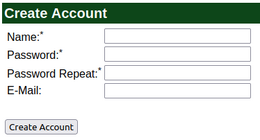
To create an account, just open the game as described above and click on Create account.

Now fill the fields:
- Choose your Stendhal server. If you are not sure about what to do, simply choose the default one. In case you want to connect to a different server, please enter it's hostname there.
- Port. Usually Stendhal servers runs at port 32160.
- Username. It is the name of your avatar in the Stendhal world.
- Password. Type in your password twice. It will secure your access to Stendhal, so choose a good one.
- Email. Just in case we need to reset the password or contact you.
Your account will be ready immediately and you are logged in to play.

Logging in
The next time you want to play Stendhal you can access the account you created earlier.
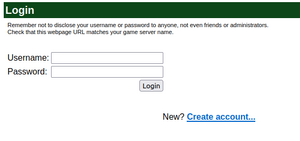
Open the client as before, and then click on the Login to Stendhal button and enter your account information.
Be sure to choose the server where you created your account (the name will be the same as the site you went to to create the account in the first place. The default option is probably correct) and finally click on Login to Server.

A progress bar will appear and soon you will be connected to the world.

If the server is down (not online) you will get an error message explaining this. In this case either try again later or create a new account on another server.
Controls and Game settings
Game screen

- Minimap
The minimap shows the position of your player with a blue cross. It also shows walkable and non walkable areas, other players and pets and sheep. Areas where you are protected from player attack are shown in green. - Player's bag
This is the bag where you can store up to twelve items. - Chat line
You write the text to talk to other players and NPCs here. You can also write commands here. Type /help for basic help with commands. - Dialogs log
Here is where all the messages received in the current session are stored (game messages and player messages). It is very useful for conversational purposes. - Player's character window
You can equip items such as weapons, armor, legs, helmets, boots and rings to obtain their benefits. - Settings window
Contains buttons to access help menus and account settings. - Game area
All the gameplay happens here. - Friends list
Information about your in-game friends.
You may see between zero and five skulls next to the name of the zone, this indicates how dangerous the zone could be for your level. The more skulls, the more dangerous.

Basic controls
Stendhal uses the mouse and the arrows keys for controlling your character. The arrow keys are for walking around. To interact with the world you can:
- click on objects
- right click and select an entry from a pop up context menu
The click mode can either be that you single click to perform an action or you double click. Choose what works best for you, and toggle between settings with /clickmode.
Your mouse cursor gives you a hint of what actions are possible on each object when you click: for enemies it displays a sword representing combat, for other people, or signs to look at, a magnifying glass is shown, for the ground you can walk on, some footprints, and so on. Note: Using items from the bag is always by double click (since you single click on items to drag and drop them)
| Action | Where | |

|
default | |

|
Attack | Creatures |

|
Move | Ground you can walk on |

|
Move and change zone | Near zone edges |

|
Use Portal | On portals |

|
Look | Players, NPCs and Signs |

|
Harvest, Pick | Grain, vegetables, wood |

|
Equip from container | Pick up item from chest or corpse |

|
Use | Wishing wells, fishing and gold spots |

|
Use requiring double click | Items |

|
Inspect | Corpses with items in them and chests |

|
Inspect | Corpses with no items in |

|
Inspect | Corpses that is reserved for another player for a couple of seconds |

|
Unknown | Anything else with a possible action (Please make a bug report) |
Move
Use the keyboard arrows to move around on the Map.

You must hold down the direction keys to make the character to move. Your character will collide with elements that exists on the world, like other players and walls.
Alternatively you can move automatically by single clicking on an empty place of the game area. Click in the mini map for longer routes. If you collide with a creature, you must reset your route by clicking your destination again.
You also collide with map borders. When you reach a map border your screen won't move any further and two things might happen:
- if an area exists next to the area you are in, you will move from your current area to the new area (you will be transferred to the new zone).
- if no area exists nothing will happen and you will simply collide and stop.
Movement-lock trick
If you make the graphics window lose the focus while keeping an arrow key pressed, your character will keep going in that direction.
When your character collides with an object or changes zones it will stop, but you can resume its movement in the locked direction by pressing an arrow key of a different direction.
The movement-lock is released only when you press the arrow key of the locked direction of movement.
Passing Through Doors
You can simply pass through the doorway by using the keyboard arrows. In the case that there is someone standing in front of the doorway and blocking it you still can pass through the door if you can get next to the door diagonally: just right click on the door and choose use, or click on it.
Moving With An Animal
If you have an animal following you such as a sheep, to change zones the animal MUST be within visible distance from your charater. To find out where your animal is, type /where <name of animal> ... for example /where sheep
Face
When attacking someone or talking to someone it is nice to face them. To do this press Ctrl and a directional arrow to face in that direction. It is just an eye candy action as it has no effect on the game rules.
Moving Items
During the game you will find or buy items such as swords and shields. To move these items around the world, use the left click and drag to the place you want them to be. You need to be next to the item if you are moving it from the ground.
If a stackable item (one which you can have more than one of in the same slot) is in your bag and you want to drop a smaller amount than the total, hold down Ctrl while you drag and drop it. Then you can type in the number to drop.
You can also use the /drop command. Say you have 2000 money and want to give 100 money away: /drop 100 money.
Managing Inventory
You can manage your inventory by equipping items, dropping them to floor or by storing them in your backpack or chest. In all cases the procedure is the same: click on the item and drop it to the desired position.
Keep in mind that you must be near an item to equip it and that you can't drop it further than 8 positions from you.

Drag and drop the item in inventory slot you want.

And you have equipped it.

You can only equip an armor to your body slot, only boots to your feet slot, and so on. Your hands can hold not only shields and swords but also other items like vegetables and scrolls if it is free.
Other actions
Click the right mouse button over objects to see a contextual menu (which will include actions that can be performed on the object) and use the left mouse button to choose an action from the menu You can right click outside the area of the menu to abort.

Game Dialog log

This dialog contains all the important events that happen in game.
Use Shift+UP arrow or Shift+DOWN arrow (hold Shift and press arrows) to put in your dialog text bar the last written sentence. Each time you press the up arrow (while still holding the shift key) you go further back in the history of your previously written sentences. When you use the down arrow instead you can go forward. That way you don't have to write again previously used sentences, for example, when you sell items.
Right click in the dialog area to select one of two actions. Clear will erase all of the text in the dialog area, but not the remembered lines that you typed so that Shift-Up can still recall them. Save will save all of the current contents to a file called gamechat.log in the user directory (the filename is shown in the dialog area). Repeating the Save will replace the file. This might be useful for saving a list of items for sale from Harold or a list of Fisherman tales from Ceryl
If the chat dialog goes pink, it means you scrolled back and now you have unread messages. Just scroll down to the bottom again.
Player communication
To communicate with other players simply type! Press Enter to send your chat message. A chat bubble will appear under your character and a new line will appear in the Game log dialog. This kind of communication is public and visible to every player in world, although you will only see text for players near you.
Alternatively you can write:
/tell playername chat Content
This allows you to write to a single character privately. For example:
/tell miguel This game rules, really. I have rated it 10/10 :)
In order to ease the communication you can write to the lasted player you msged using //
// Really man!, go and rate it.
You can also write any of the administrators that are in game to request support by writting /support
/support I keep getting an out of memory exception, so the game crashes, can I avoid this?
Finding persons
You can discover who is online by using the command /who.
/who
This will show a list of the players that are online now with their levels.
You can find out a players position by querying server using /where player name
/where miguel
Getting help
You can get help about the previous commands by using the command /help.
/help
This will return a list of the commands that are available to the player with a brief explanation of their usage and parameters.
You can hit the function key F1 or type /manual to open this manual page in a browser window.
Exit game
Press ESC to exit. You will be prompted again to either really quit or return to the game. Alternatively you can simply close the window. In any case, your information about your inventory stuff and position in the game is automatically saved before you quit the game.

Settings and sounds
Settings dialog
Many options for how the game looks and sounds can be accessed from the Settings dialog. Click the silver cog button between the sheep and and the shield on the top right.

- Double click mode
- As set with
/clickmodeand explained above under Basic Controls - Show blood and corpses
- Disable to see place holder images
- Auto inspect corpses
- Disable to prevent corpses automatically being inspected
- Show healing/poison message
- Disable to hide the specified type of message
- Light effects
- Disable to turn off zone colouring such as night time
- Custom decorative font
- To change the font used in the Travel Log and Achievements, for example
Sound
The easiest way to change the sounds is from the Settings dialog as above, clicking on the sounds tab:

You can also mute and unmute sounds and music with
/mute
You can set the volume of sounds with
/volume
which will show you the current volume settings for each group of sound types, which you can adjust independently:

Gameplay
Characters
You can and need to talk to other characters to get help and to find out about quests to complete.
There are several NPCs in Stendhal. All of them reply to Hi (most of them reply also to Hello and Hola), so greet them and ask them for help or quests.
Some of them will sell and buy sheep or items, others heal you, and others are simply "useless"
http://arianne.sourceforge.net/wiki_images/manual_009.jpg

An example of a conversation with Xin Blanca could be:
 <miguel> hi
 <Xin Blanca> Greetings! How may I help you?
 <miguel> help
 <Xin Blanca> I buy and sell several items, ask me for my offer
 <miguel> sell
 <Xin Blanca> Sorry, I don't buy sell
 <miguel> offer
 <Xin Blanca> I sell wooden_shield,knife,club,leather_legs,dress,small_axe,leather_helmet, I buy studded_shield,short_sword,sword,
 <miguel> buy leather_legs
 <Xin Blanca> leather_legs costs 30. Do you want to buy?
 <miguel> yes
 <Xin Blanca> Congratulations! Here is your leather_legs!
 <miguel> Bye
 <Xin Blanca> Bye.
Sometimes you can buy more than one item at the same time:
<miguel> buy 10 minor_potion
Notice that names of items doesn't contain spaces between words (they use _ as separator) and the name of the item is always singular independently of the amount being bought.
Items
Items such as armour and weapons can be found in the Stendhal world, or bought for hard earned cash. (Hint: Explore the tavern, I've heard a shady character goes there to sell his stuff... though it might be stolen!)
Items increase your Attack or Defence values accordingly. They must be equipped by dragging them onto a particular section of the player in the Top right GUI. This little representation of your player allows you to visualise what they are wearing/using.
World of Stendhal
Explore it! :)

- Google-maps enabled world map with zoom and pan http://stendhalgame.org/world/atlas.html
- 100% scale map here
- 100% scale map with zone names: here
- 100% scale map with dungeon entrances: here
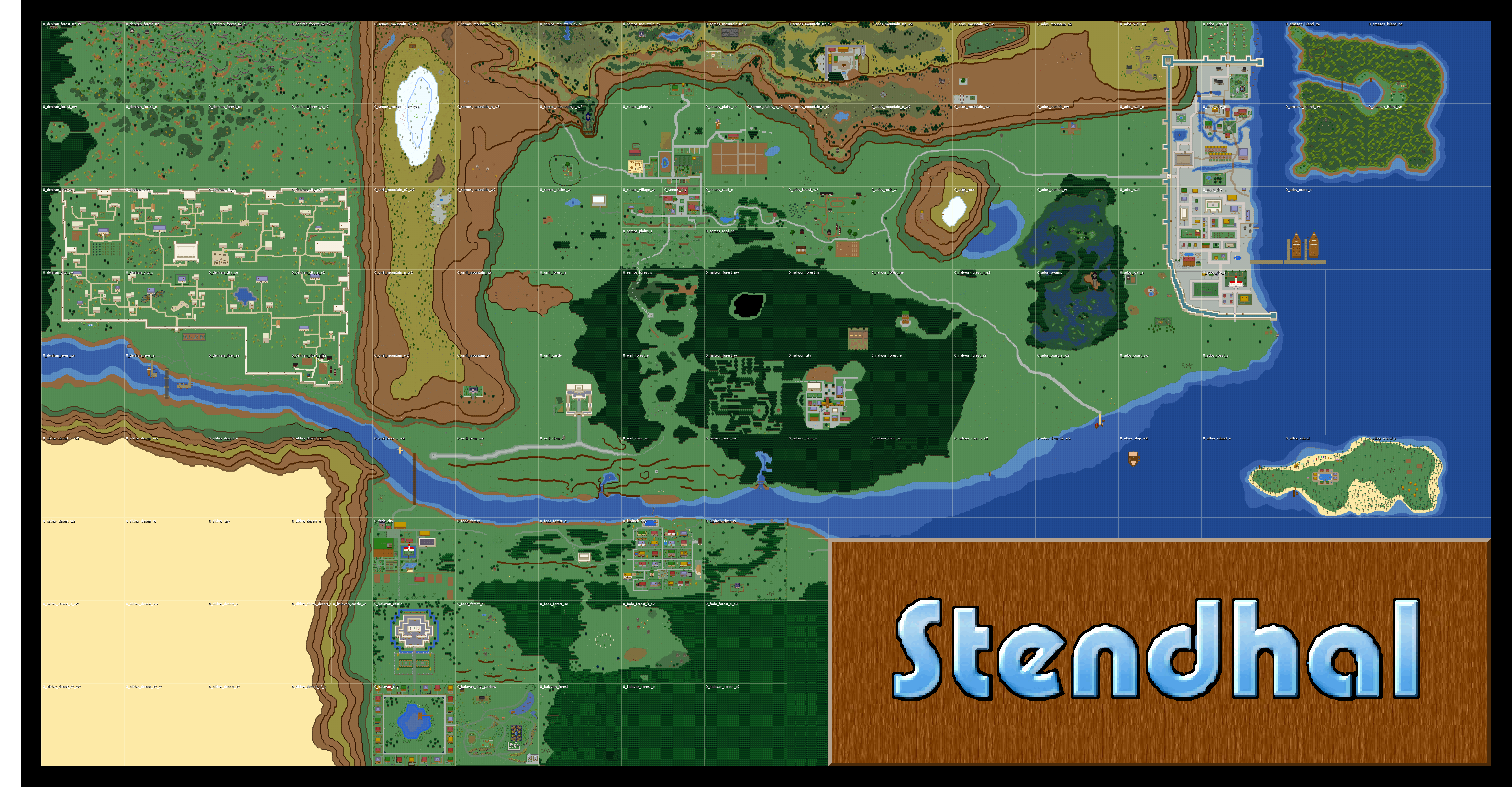
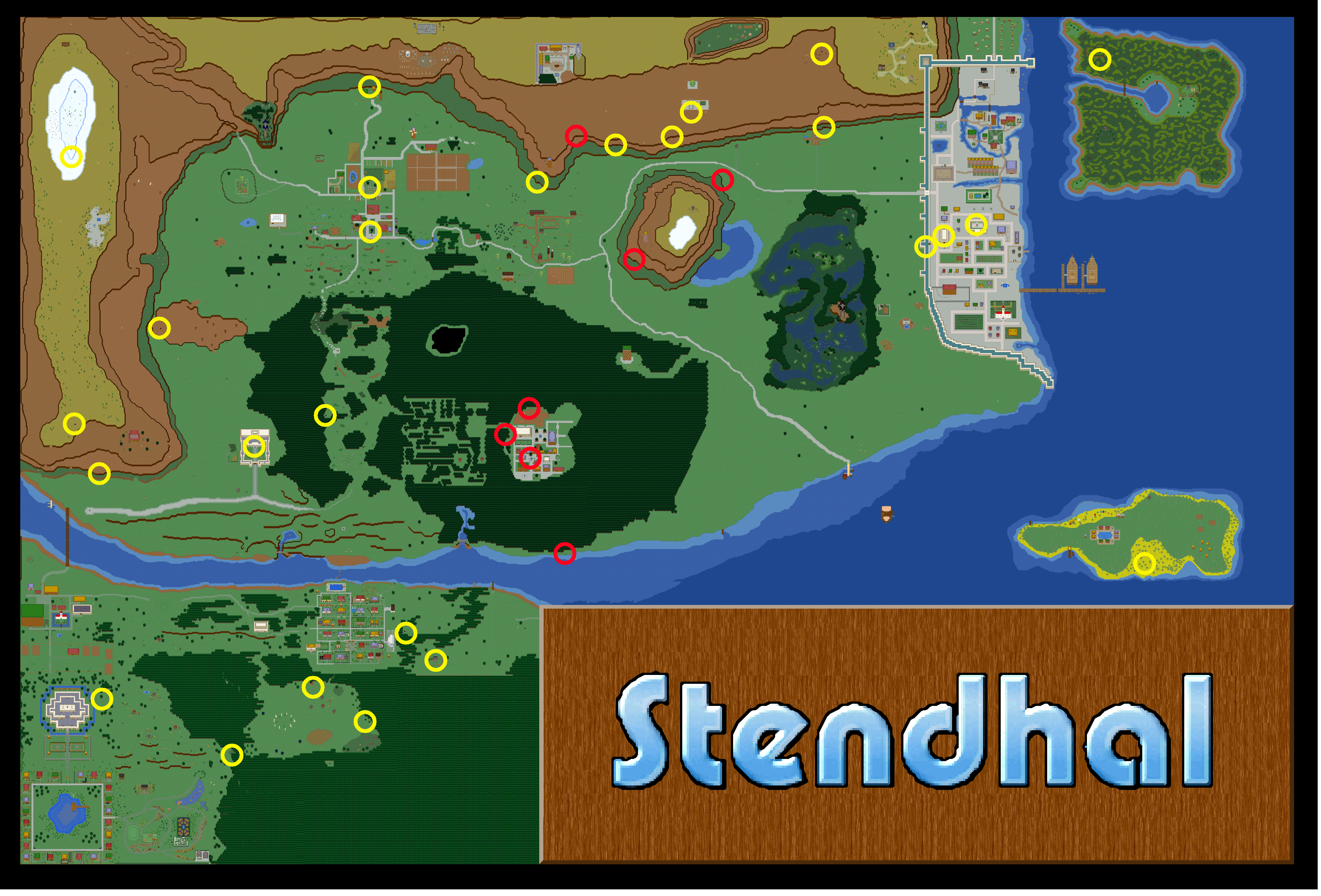
This map represent current status of the Stendhal World. It only shows the ground level to avoid spoiling interesting dungeons. Dungeons meant to be hidden are not marked to avoid spoiling interesting quests.
Read more at StendhalAtlas
NPCs (Non Player Characters) And Learning About Quests
All around the world of Stendhal are numerous NPCs all waiting to give you some tips on available quests.
All NPCs respond to saying hi and usually to quest. Some may have different things to say so try asking them multiple times. NPCs also respond to help.
Sheep
Once you have bought a sheep it will follow you wherever you go. It's your job to protect and feed it.
The icon shown in the upper-right corner of the sheep will show you what it is thinking.
- A yellow man means it is currently following you.
http://www.j-a-r-n-o.nl/following.png

- A hamburger means it would like to eat. Your sheep will go to the nearest food source.
http://www.j-a-r-n-o.nl/eating.png

- Little feet means it is just wandering around. This sheep isn't owned by anyone (anymore).
http://www.j-a-r-n-o.nl/wandering.png

Sheep like to eat fruits. These fruits can be found on the many bushes in Stendhal. A bush can carry up to five fruits. Over time these will grow back. So if your sheep has eaten all of it, it's time to move to the next bush.
http://www.j-a-r-n-o.nl/bushes.png

Right Click on your sheep and choose Look to see how fat it has become. The fatter the sheep, the more you will get for it when you sell it.
Sheeps aren't very intelligent. So if your sheep gets stuck or isn't near you just write sheep and it will start moving to your position. You can verify the sheep's position by writing /where sheep.
Unfortunately once you own a sheep you can't leave the zone without your sheep being near you. So make sure it is near before trying to leave. If you are in a hurry you can leave your sheep. To leave your sheep right click on yourself and choose leave sheep.
Sometimes sheep are silly and they trap you. If this happens, then leave your sheep. He'll walk away then when you're free you can own him again.
You can also own a released wild sheep again by right clicking on it and choosing own.
Outfit
Outfit helps you to feel the real role playing experience.
You can choose your outfit by mixing a set of different styles of bodies, heads, hairs and clothes.
http://arianne.sourceforge.net/wiki_images/manual_17.jpg

To bring up the dialog Right Click your character and choose Set Outfit. Click OK when you are done.
You can also choose not to wear clothes at all :)
If you just close the window nothing will be changed.
Combat
Combat is an important way of increasing your level. You only get experience by killing. You can't improve your skills by training like in other games.
To attack a creature simply right click on it and choose Attack or double-click it. You will see that a red box appears almost immediately around it. This indicates an attack is being carried out. You need to be next to the target in order to actually hit them though!
http://arianne.sourceforge.net/wiki_images/manual_010.jpg

Your attack will continue until:
- you stop it using "Stop attack" action
- you press ESC
- you change zone (area)
- your target is dead
Combat is round based, and each round last around 1.6 seconds. Each round the attack is resolved and the result is displayed in the right-bottom corner of the target:
- a cloud means you failed to hit the target.
http://arianne.sourceforge.net/wiki_images/manual_010.jpg
- a shield means you hit the target but that you were unable to damage it.
http://arianne.sourceforge.net/wiki_images/manual_011.jpg

- a blood drop means you hit the target and damaged it. Also you will see a red number pop out of the target indicating the amount of damage actually done.
http://arianne.sourceforge.net/wiki_images/manual_012.jpg

If you kill your target you will see a blue number pop out which is the experience reward you have gained.
http://arianne.sourceforge.net/wiki_images/manual_013.jpg

Once you have killed your target it is important that you inspect its corpse to find money, food and other items: move next to the corpse and right click on it and choose inspect (you can also double-click to inspect). You can identify any kind of item you find at any time by right clicking on it and choosing look.
To store items in your bag you can move them there by drag and drop or simply double-click them.
Levels
Your character has a level attribute that expresses how strong that character is.
Levels are the only way of comparing your character against others.
With each kill or quest completed you are rewarded experience points (XP). If you get enough XP you will level up and gain a development point (a development point is a point to add to your skill in a number of different fields. This is the way in which you make your character stronger and better)[Note: development points aren't implemented yet].
http://arianne.sourceforge.net/wiki_images/manual_014.jpg

You can spend development points on:
- +1 ATK level (your attack skill)
- +1 DEF level (your defense skill)
- +10 HP points (your hit points, i.e. the amount of damage you can take before you die)
http://arianne.sourceforge.net/wiki_images/manual_015.jpg

Once you have spent your point you can't undo your decision, so choose carefully. This allows you to properly choose the direction of skill your character will follow.
http://arianne.sourceforge.net/wiki_images/manual_016.jpg

To see how much experience is needed to change level, checkout the tables at the bottom of this manual.
Support
If u need any help ask in the game to the GM or the higher lvls.
Level Tables
The level Tables have moved to it's own page now, check Level Progression Tables to see it.