Stendhal on Eclipse: Difference between revisions
imported>Hendrik Brummermann |
imported>Hendrik Brummermann more cleanup |
||
| Line 3: | Line 3: | ||
This guide describes how to setup a development environment in Eclipse for Stendhal. |
This guide describes how to setup a development environment in Eclipse for Stendhal. |
||
== Get Java == |
|||
* If you can play Stendhal, you already have Java and can skip this step. |
|||
* If you do not have java installed, please download it https://java.com<br> (if you are on Linux, use your packet manager) |
|||
== Get Eclipse== |
== Get Eclipse== |
||
| Line 31: | Line 35: | ||
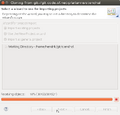
* Eclipse will now download Stendhal from git, this may take a while |
* Eclipse will now download Stendhal from git, this may take a while |
||
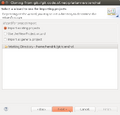
* "Import existing projects" and select "Next" |
* "Import existing projects" and select "Next" |
||
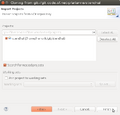
* "Finish" import of project Stendhal |
|||
Click on the screenshots to enlarge them, if you need help with any of the steps: |
Click on the screenshots to enlarge them, if you need help with any of the steps: |
||
| Line 42: | Line 47: | ||
Eclipse 06.png|Just click "next" on destionation |
Eclipse 06.png|Just click "next" on destionation |
||
Eclipse 07.png|Wait for the download to complete. This may take quite a while |
Eclipse 07.png|Wait for the download to complete. This may take quite a while |
||
Eclipse 08.png|Import existing project |
|||
Eclipse 09.png|Confirm import of project "Stendhal" by clicking finish |
|||
</gallery> |
</gallery> |
||
== Configure Project == |
|||
| ⚫ | |||
* Check the text encoding at Project -> Properties -> Resource -> Text Encoding. Set it to UTF-8 unless it is that already. |
|||
After completing the import wizard, Eclipse should look like the following screenshot: |
|||
Eclipse should be able to compile the source code now. There could be a little yellow sign (signalling warning messages) before your project folder but there must not be red X (error messages). The package explorer should now display the "src" and "test" folder below the root folder with a different icon, the icon is like a small grid. |
|||
[[File:Eclipse 10.png]] |
|||
| ⚫ | |||
menu Windows | Preferences | Java | Installed JREs |
|||
There is a project called "stendhal" listed in the Package Explorer view. There may be a tiny yellow triangle in front of the blue project icon. But if you see a red circle or a red exclamation mark, something went wrong. In this case there will be an error in the "Problems" view at the bottom. |
|||
* there should be at least one entry with a valid JAVA_HOME path (make it so so JDK compliance is at least Java 7) |
|||
== Start StendhalServer == |
|||
==To make it run the server in Debug mode== |
|||
* In the toolbar there is the "Debug" button, which looks like a little, green bug. There is a little black arrow on the right side of it. |
* In the toolbar there is the "Debug" button, which looks like a little, green bug. There is a little black arrow on the right side of it. |
||
[[File:Eclipse_debug_configurations_menu.png]] |
[[File:Eclipse_debug_configurations_menu.png]] |
||
| Line 73: | Line 81: | ||
button "Advanced" |
button "Advanced" |
||
(*) add folder | OK |
(*) add folder | OK |
||
and select the project root folder | OK |
and select the "stendhal" project root folder | OK |
||
</pre> |
</pre> |
||
| Line 79: | Line 87: | ||
And then the server should be started. |
And then the server should be started. |
||
== |
== Start Stendhal Client == |
||
# Open games.stendhal.client.update.Starter.java in the editor |
# Open games.stendhal.client.update.Starter.java in the editor |
||
# Then again the small black arrow on the right side of the green bug. |
# Then again the small black arrow on the right side of the green bug. |
||
# Select "Debug Configurations" (or "Run Configurations..."). |
# Select "Debug Configurations" (or "Run Configurations..."). |
||
# Select Java Application and click the "New" button in upper-left corner. |
# Select Java Application and click the "New" button in upper-left corner. |
||
# On the [Classpath] tab select "User Entries" - button "Advanced" - (*) add folder | OK - and select the project root folder. | OK |
# On the [Classpath] tab select "User Entries" - button "Advanced" - (*) add folder | OK - and select the project root folder. | OK |
||
yay shiny new client, shiny server |
|||
== Making patches == |
== Making patches == |
||
| Line 93: | Line 99: | ||
==Running JUnit Tests in Eclipse== |
==Running JUnit Tests in Eclipse== |
||
This is an advanced topic. If you make changes to the Java code, it is a good idea to run the automatic test. |
|||
Setting up JUnit tests in Eclipse: |
Setting up JUnit tests in Eclipse: |
||
# Click the arrow next to either the green "Run" or "Debug" button. |
# Click the arrow next to either the green "Run" or "Debug" button. |
||
Revision as of 22:25, 22 June 2015
- |


This guide describes how to setup a development environment in Eclipse for Stendhal.
Get Java
- If you can play Stendhal, you already have Java and can skip this step.
- If you do not have java installed, please download it https://java.com
(if you are on Linux, use your packet manager)
Get Eclipse
- Go to https://www.eclipse.org/downloads/
- Download: "Eclipse IDE for Java Developers"
- Unzip the download an run Eclipse
- In Eclipse, close the "Welcome" window
You can click on the following images to see them in large.
-
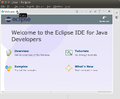 On the first run of Eclipse, this "Welcome" window is shown. Please close it.
 -
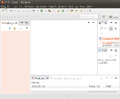 Typical window layout with the Package Explorer on the left hand side and an empty area for editors in the middle


New Project from Git
In Eclipse:
- Open menu "File -> Import
- In the dialog select: "Git -> Projects from Git" and click "Next".
- Select "Clone URI" and click "Next".
- Fill in the following information:
URI:git://git.code.sf.net/p/arianne/stendhal - The result of the fields are filled in automatically, click "Next"
- On the Branch selection page, keep everything selected and click "Next"
- Under "Destination" choose the directory where you want to download the source code and select "Next".
- Eclipse will now download Stendhal from git, this may take a while
- "Import existing projects" and select "Next"
- "Finish" import of project Stendhal
Click on the screenshots to enlarge them, if you need help with any of the steps:
-
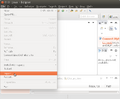 Import
 -
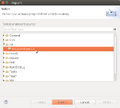 Import from Git
 -
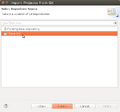 Clone URI
 -
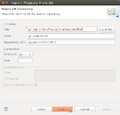 Fill in URI and watch the remaining fields to be filled automatically
 -
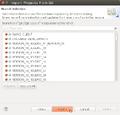 Just click "next" on branch selection
 -
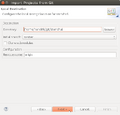 Just click "next" on destionation
 -
 Wait for the download to complete. This may take quite a while
 -
 Import existing project
 -
 Confirm import of project "Stendhal" by clicking finish


Trouble Shooting
After completing the import wizard, Eclipse should look like the following screenshot:

There is a project called "stendhal" listed in the Package Explorer view. There may be a tiny yellow triangle in front of the blue project icon. But if you see a red circle or a red exclamation mark, something went wrong. In this case there will be an error in the "Problems" view at the bottom.
Start StendhalServer
- In the toolbar there is the "Debug" button, which looks like a little, green bug. There is a little black arrow on the right side of it.

- This will open a menu, please choose "Debug configurations ..." ("Open Debug Dialog..." on older versions)
- Then in the dialog select "Java Application" and click on the "new" icon in the top left corner.

 Name: StendhalServer
 Main class: games.stendhal.server.StendhalServer

* All other settings ("include system libries", "Stop in main", ... can be left at their default value.

on the [Arguments] tab:
VM arguments: -Xmx128M

on the [Classpath] tab:
 click UserEntries
 button "Advanced"
(*) add folder | OK
 and select the "stendhal" project root folder | OK
- button [Debug]
And then the server should be started.
Start Stendhal Client
- Open games.stendhal.client.update.Starter.java in the editor
- Then again the small black arrow on the right side of the green bug.
- Select "Debug Configurations" (or "Run Configurations...").
- Select Java Application and click the "New" button in upper-left corner.
- On the [Classpath] tab select "User Entries" - button "Advanced" - (*) add folder | OK - and select the project root folder. | OK
Making patches
If you have modified and tested the code and want to send us a patch, please see How To Create Patch For Stendhal.
Running JUnit Tests in Eclipse
This is an advanced topic. If you make changes to the Java code, it is a good idea to run the automatic test.
Setting up JUnit tests in Eclipse:
- Click the arrow next to either the green "Run" or "Debug" button.
- Select "Run/Debug Configurations...".
- Select "JUnit" in the left column and press the "New launch configuration" at the top of left column.
- Give it a unique name, like "Stendhal Tests".
- Select "Run all tests in the selected project, package or source folder".
- OPTIONAL: (this step simply reduces the number of directories that Eclipse will search in for tests)
- Press "Search".
- Select "tests" folder under Stendhal root directory and press "OK".
- Under "Test runner" select "JUnit 4".
- Under "Classpath" tab select "User Entries" and press "Advanced" on the right panel.
- NOTE: There should already be a folder under "User Entries" with a "(default classpath)" suffix. Do not delete this folder.
- Select "Add Folders" and press "OK".
- Select the Stendhal root folder and press "OK".
- Now click "Add JARs..." on the right panel.
- Under the Stendhal root folder select all the .jar files in libs and press OK.
- Now press "Apply" to save the configuration or "Run" to save and run it.