Stendhal on Eclipse: Difference between revisions
imported>AntumDeluge Stendhal on Eclipse: Add instructions for Git checkout (testing). |
imported>Hendrik Brummermann |
||
| (97 intermediate revisions by 6 users not shown) | |||
| Line 1: | Line 1: | ||
{{Navigation for Stendhal Top|Building & Hosting}} |
{{Navigation for Stendhal Top|Building & Hosting}} |
||
This guide describes how to setup a development environment in Eclipse for Stendhal. |
|||
== New Project from CVS == |
|||
== Get Java == |
|||
<ol> |
|||
<li> First of all open the view called Package Explorer.</li> |
|||
<li> "New Project..."</li> |
|||
<li> "CVS" -> "Project from CVS" </li> |
|||
<li> Get stendhal from CVS. (Connection type: pserver, User: anonymous, Password - leave blank, Host:arianne.cvs.sourceforge.net, Repository: /cvsroot/arianne)</li> |
|||
* If you can play Stendhal, you already have Java and can skip this step. |
|||
<pre> |
|||
* If you do not have java installed, please download it https://java.com<br> (if you are on Linux, use your packet manager) |
|||
file-> new -> project -> project-> from cvs |
|||
click next |
|||
== Get Node.js == |
|||
check "create new repository" |
|||
click next |
|||
* https://nodejs.org (optional: for building & using web client) |
|||
host : arianne.cvs.sourceforge.net |
|||
repository path : /cvsroot/arianne |
|||
user : anonymous |
|||
connection Type: pserver |
|||
click next |
|||
== Get Eclipse== |
|||
check "use an existing module" |
|||
click directory: stendhal |
|||
click next |
|||
</pre> |
|||
* Go to https://www.eclipse.org/downloads/ |
|||
<li>Checkout as a project configured using the new project wizard. Click "Next" then "Finish".</li> |
|||
* Download: "Eclipse IDE for Java Developers" |
|||
</ol> |
|||
* Unzip the download and run Eclipse |
|||
* In Eclipse, close the "Welcome" window |
|||
You can click on the following images to see them in large. |
|||
== New Project from Git == |
|||
<gallery> |
|||
<span style="font-style:italic;"><span style="color:red;">NOTE:</span> There are plans to move Stendhal from CVS to Git. But, there is not yet an official Git repository. For now it is recommended to checkout the source from CVS.</span><br> |
|||
File:Eclipse_00.png|On the first run of Eclipse, this "Welcome" window is shown. Please close it. |
|||
<span style="font-style:italic;"><span style="color:red;">NOTE:</span> Eclipse does not come installed with a Git plugin. You will need to install EGit.</span> |
|||
File:Eclipse_00a.png|Typical window layout with the Package Explorer on the left hand side and an empty area for editors in the middle |
|||
<ol> |
|||
</gallery> |
|||
<li>Open the Eclipse Marketplace (Help -> Eclipse Marketplace).</li> |
|||
Note: If you installed Eclipse in Ubuntu via a package manager, also install: "eclipse-egit" |
|||
<li>Find and install EGit.</li> |
|||
<li>Restart Eclipse.</li> |
|||
<li>Open package explorer view.</li> |
|||
<li>Select "File -> Import -> Git -> Projects from Git" and click "Next".</li> |
|||
<li>Select "Clone URI" and click "Next".</li> |
|||
<li>Fill in the following information:</li> |
|||
== New Project from Git == |
|||
<pre> |
|||
NOTE: These Git URIs are for testing and not the official Stendhal repository. |
|||
They may not contain updated source code. When an official repository |
|||
has been established it will be shown here. |
|||
In Eclipse: |
|||
For anonymous checkout: |
|||
URI: git://git.code.sf.net/p/delugebuilds/stendhal-git |
|||
For privileged checkout: |
|||
URI: ssh://username@git.code.sf.net/p/delugebuilds/stendhal-git |
|||
* Open menu "File -> Import |
|||
Host: git.code.sf.net |
|||
* In the dialog select: "Git -> Projects from Git" and click "Next". |
|||
Repository path: /p/delugebuilds/stendhal-git |
|||
* Select "Clone URI" and click "Next". |
|||
Protocol: "git" (for anonymous) or "ssh" (for privileged). |
|||
* Fill in the following information: |
|||
Port: Can be left blank. |
|||
** '''URI''': |
|||
Username: Only required for privileged checkout. |
|||
*** GitHub readonly: <code><nowiki>https://github.com/arianne/stendhal.git</nowiki></code><br>(if you have a github account, please go to https://github.com/arianne/stendhal and click on "Fork" to create you own copy of the repository and then use that in Eclipse instead) |
|||
Password: Will be prompted for if left blank on privileged checkout. |
|||
*** GitHub read/write (SSH): <code><nowiki>git@github.com:arianne/stendhal.git</nowiki></code> |
|||
</pre> |
|||
* The result of the fields are filled in automatically, click "Next" |
|||
* On the Branch selection page, keep everything selected and click "Next" |
|||
* Under "Destination" choose the directory where you want to download the source code and select "Next". |
|||
* Eclipse will now download Stendhal from git, this may take a while |
|||
* "Import existing projects" and select "Next" |
|||
* "Finish" import of project Stendhal |
|||
Click on the screenshots to enlarge them, if you need help with any of the steps: |
|||
<li>Click "Next".</li> |
|||
<li>Check "master" and click "Next".</li> |
|||
<li>Under "Destination" choose the directory where you want to download the source code and select "Next". The other options can be left at their defaults. |
|||
<li>After cloning has finished select "Use the New Project wizard" and click "Finish".</li> |
|||
</ol> |
|||
<gallery> |
|||
== Configure Project == |
|||
Eclipse 01.png|Open File | Import |
|||
Eclipse 02.png|Import from Git |
|||
Eclipse 03.png|Clone URI |
|||
Eclipse 04.png|Fill in URI and watch the remaining fields to be filled automatically |
|||
Eclipse 05.png|Just click "next" on branch selection |
|||
Eclipse 06.png|Just click "next" on destination |
|||
Eclipse 07.png|Wait for the download to complete. This may take quite a while |
|||
Eclipse 08.png|Import existing project |
|||
Eclipse 09.png|Confirm import of project "Stendhal" by clicking finish |
|||
</gallery> |
|||
==Trouble Shooting== |
|||
<ol> |
|||
<li>In the New Project wizard select Java -> Java Project (do not select a simple "general" project!) and click "Next".</li> |
|||
<li>Project name: stendhal ( or whatever you like to call it ). If you are importing from Git you need to use the name of the folder where the source code is located ( the rest of the options will be automatically selected ).</li> |
|||
<li>Under the section named "JRE" make sure a Java version 1.5 or higher is selected and click "Finish".</li> |
|||
<li>Right click on your project folder and select "Properties" in the context menu.</li> |
|||
<li>Then select "Java Build Path" on the left side of the dialog box.</li> |
|||
<li>Now remove all existing folders from source path and add the two source folders 'src' and 'tests' by clicking on the "Add Folder..." button</li> |
|||
After completing the import wizard, Eclipse should look like the following screenshot: |
|||
<pre> |
|||
source folder #1: |
|||
stendhal/src |
|||
Included:(All) |
|||
Excluded:(None) |
|||
Native library location: (None) |
|||
[[File:Eclipse 10.png]] |
|||
source folder #2: |
|||
stendhal/tests |
|||
Included:(All) |
|||
Excluded:(None) |
|||
Native library location: (None) |
|||
There is a project called "stendhal" listed in the Package Explorer view. There may be a tiny yellow triangle in front of the blue project icon. But if you see a red circle or a red exclamation mark, something went wrong. In this case there will be an error in the "Problems" view at the bottom. |
|||
default output folder: stendhal/bin |
|||
</pre> |
|||
== Start StendhalServer == |
|||
<i><span style="color:red;">NOTE:</span> For newer versions of eclipse an asterix (*) may need to be added manually to "Included". If the project is already checked out just right-click "src" & "tests" in the Package Explorer panel & select <span style="color:blue;">Build Path > Configure Inclusion / Exclusion Filters...</span> Under "Inclusion patterns" select "Add" then input "*" and select "OK" then "Finish". Updated screenshots to be added.</i> |
|||
<li> On the "Libraries" tab: click on the "Add JARs" button and select all the *.jar-files in stendhal/libs</li> |
|||
<i><span style="color:red;">NOTE:</span> If project checkout did not complete before the Create New Project Wizard starts you may have to add the .jar files later. To get to the project properties page either select "Project" from the menu bar then select "Properties" or right-click the root folder in the Package Explorer panel then select "Properties" from the drop-down menu. Updated screenshots to be added.</i> |
|||
<li> Check the text encoding at Project -> Properties -> Resource -> Text Encoding. Set it to UTF-8 unless it is that already.</li> |
|||
</ol> |
|||
Eclipse should be able to compile the source code now. There could be a little yellow sign (signalling warning messages) before your project folder but there must not be red X (error messages). The package explorer should now display the "src" folder below the root folder with a different icon, the icon is like a small grid. |
|||
==Trouble Shooting== |
|||
menu Windows | Preferences | Java | Installed JREs |
|||
* there should be at least one entry with a valid JAVA_HOME path (make it so so JDK compliance is 5.0 ?) |
|||
==To make it run the server in Debug mode== |
|||
* In the toolbar there is the "Debug" button, which looks like a little, green bug. There is a little black arrow on the right side of it. |
* In the toolbar there is the "Debug" button, which looks like a little, green bug. There is a little black arrow on the right side of it. |
||
[[File:Eclipse_debug_configurations_menu.png]] |
[[File:Eclipse_debug_configurations_menu.png]] |
||
| Line 113: | Line 76: | ||
[[File:Eclipse_new_debug_configuration.png]] |
[[File:Eclipse_new_debug_configuration.png]] |
||
Name: StendhalServer |
|||
Main class: games.stendhal.server.StendhalServer |
Main class: games.stendhal.server.StendhalServer |
||
* All other settings ("include system libries", "Stop in main", ... can be left at their default value. |
* All other settings ("include system libries", "Stop in main", ... can be left at their default value. |
||
* on the [Arguments] tab: VM arguments: -Xmx128M |
|||
* on the [Classpath] tab: click "UserEntries" - button "Advanced" - (*) add folder | OK - and select the "stendhal" project root folder | OK |
|||
* button [Debug] |
|||
And then the server should be started. |
|||
on the [Arguments] tab: |
|||
VM arguments: -Xmx128M |
|||
NOTE: On newer Eclipse versions, the [Classpath Entries] are under Dependencies tab. |
|||
click UserEntries |
|||
button "Advanced" |
|||
(*) add folder | OK |
|||
and select the project root folder | OK |
|||
</pre> |
|||
== Start Stendhal Client == |
|||
* button [Debug] |
|||
And then the server should be started. |
|||
==To make the client run== |
|||
# Open games.stendhal.client.update.Starter.java in the editor |
# Open games.stendhal.client.update.Starter.java in the editor |
||
# Then again the small black arrow on the right side of the green bug. |
# Then again the small black arrow on the right side of the green bug. |
||
# Select "Debug Configurations" (or "Run Configurations..."). |
# Select "Debug Configurations" (or "Run Configurations..."). |
||
# Select Java Application and click the "New" button in upper-left corner. |
# Select Java Application and click the "New" button in upper-left corner. |
||
# On the [Classpath] tab select "User Entries" - button "Advanced" - (*) add folder | OK - and select the project root folder. | OK |
# On the [Classpath] tab select "User Entries" - button "Advanced" - (*) add folder | OK - and select the project root folder. | OK |
||
yay shiny new client, shiny server |
|||
== Making patches == |
== Making patches == |
||
| Line 145: | Line 100: | ||
==Running JUnit Tests in Eclipse== |
==Running JUnit Tests in Eclipse== |
||
This is an advanced topic. If you make changes to the Java code, it is a good idea to run the automatic test. |
|||
Setting up JUnit tests in Eclipse: |
Setting up JUnit tests in Eclipse: |
||
# Click the arrow next to either the green "Run" or "Debug" button. |
# Click the arrow next to either the green "Run" or "Debug" button. |
||
| Line 162: | Line 120: | ||
# Under the Stendhal root folder select all the .jar files in libs and press OK. |
# Under the Stendhal root folder select all the .jar files in libs and press OK. |
||
# Now press "Apply" to save the configuration or "Run" to save and run it. |
# Now press "Apply" to save the configuration or "Run" to save and run it. |
||
==Switching from pserver to extssh== |
|||
If you need to switch from anonymous read-only access to read/write, follow these |
|||
instructions. |
|||
(based on clues at http://blog.maestropublishing.com/changing-cvs-username-and-password-in-an-ecli) |
|||
# Window -> Show View -> Other |
|||
# Open up CVS, and double click on "CVS Repositories". A new tab will show up, named CVS Repositories |
|||
# Right click on the arianne line, and select Properties |
|||
# Change Connection Type to extssh |
|||
# Set User and Password to your sourceforge user id and password |
|||
# Click Apply. Eclipse will take a few minutes to update attributes. |
|||
After that, test by trying another CVS Synchronize. The first time, you will probably get a dialog about the server certificate. |
|||
Latest revision as of 18:13, 20 June 2023
- |


This guide describes how to setup a development environment in Eclipse for Stendhal.
Get Java
- If you can play Stendhal, you already have Java and can skip this step.
- If you do not have java installed, please download it https://java.com
(if you are on Linux, use your packet manager)
Get Node.js
- https://nodejs.org (optional: for building & using web client)
Get Eclipse
- Go to https://www.eclipse.org/downloads/
- Download: "Eclipse IDE for Java Developers"
- Unzip the download and run Eclipse
- In Eclipse, close the "Welcome" window
You can click on the following images to see them in large.
-
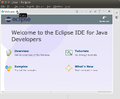 On the first run of Eclipse, this "Welcome" window is shown. Please close it.
 -
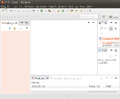 Typical window layout with the Package Explorer on the left hand side and an empty area for editors in the middle


Note: If you installed Eclipse in Ubuntu via a package manager, also install: "eclipse-egit"
New Project from Git
In Eclipse:
- Open menu "File -> Import
- In the dialog select: "Git -> Projects from Git" and click "Next".
- Select "Clone URI" and click "Next".
- Fill in the following information:
- URI:
- GitHub readonly:
https://github.com/arianne/stendhal.git
(if you have a github account, please go to https://github.com/arianne/stendhal and click on "Fork" to create you own copy of the repository and then use that in Eclipse instead) - GitHub read/write (SSH):
git@github.com:arianne/stendhal.git
- GitHub readonly:
- URI:
- The result of the fields are filled in automatically, click "Next"
- On the Branch selection page, keep everything selected and click "Next"
- Under "Destination" choose the directory where you want to download the source code and select "Next".
- Eclipse will now download Stendhal from git, this may take a while
- "Import existing projects" and select "Next"
- "Finish" import of project Stendhal
Click on the screenshots to enlarge them, if you need help with any of the steps:
-
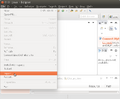 Import
 -
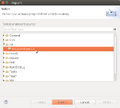 Import from Git
 -
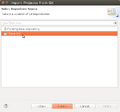 Clone URI
 -
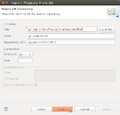 Fill in URI and watch the remaining fields to be filled automatically
 -
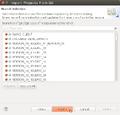 Just click "next" on branch selection
 -
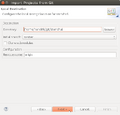 Just click "next" on destination
 -
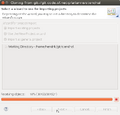 Wait for the download to complete. This may take quite a while
 -
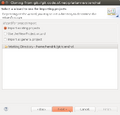 Import existing project
 -
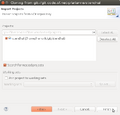 Confirm import of project "Stendhal" by clicking finish


Trouble Shooting
After completing the import wizard, Eclipse should look like the following screenshot:

There is a project called "stendhal" listed in the Package Explorer view. There may be a tiny yellow triangle in front of the blue project icon. But if you see a red circle or a red exclamation mark, something went wrong. In this case there will be an error in the "Problems" view at the bottom.
Start StendhalServer
- In the toolbar there is the "Debug" button, which looks like a little, green bug. There is a little black arrow on the right side of it.

- This will open a menu, please choose "Debug configurations ..." ("Open Debug Dialog..." on older versions)
- Then in the dialog select "Java Application" and click on the "new" icon in the top left corner.

Name: StendhalServer
Main class: games.stendhal.server.StendhalServer
- All other settings ("include system libries", "Stop in main", ... can be left at their default value.
- on the [Arguments] tab: VM arguments: -Xmx128M
- on the [Classpath] tab: click "UserEntries" - button "Advanced" - (*) add folder | OK - and select the "stendhal" project root folder | OK
- button [Debug]
And then the server should be started.
NOTE: On newer Eclipse versions, the [Classpath Entries] are under Dependencies tab.
Start Stendhal Client
- Open games.stendhal.client.update.Starter.java in the editor
- Then again the small black arrow on the right side of the green bug.
- Select "Debug Configurations" (or "Run Configurations...").
- Select Java Application and click the "New" button in upper-left corner.
- On the [Classpath] tab select "User Entries" - button "Advanced" - (*) add folder | OK - and select the project root folder. | OK
Making patches
If you have modified and tested the code and want to send us a patch, please see How To Create Patch For Stendhal.
Running JUnit Tests in Eclipse
This is an advanced topic. If you make changes to the Java code, it is a good idea to run the automatic test.
Setting up JUnit tests in Eclipse:
- Click the arrow next to either the green "Run" or "Debug" button.
- Select "Run/Debug Configurations...".
- Select "JUnit" in the left column and press the "New launch configuration" at the top of left column.
- Give it a unique name, like "Stendhal Tests".
- Select "Run all tests in the selected project, package or source folder".
- OPTIONAL: (this step simply reduces the number of directories that Eclipse will search in for tests)
- Press "Search".
- Select "tests" folder under Stendhal root directory and press "OK".
- Under "Test runner" select "JUnit 4".
- Under "Classpath" tab select "User Entries" and press "Advanced" on the right panel.
- NOTE: There should already be a folder under "User Entries" with a "(default classpath)" suffix. Do not delete this folder.
- Select "Add Folders" and press "OK".
- Select the Stendhal root folder and press "OK".
- Now click "Add JARs..." on the right panel.
- Under the Stendhal root folder select all the .jar files in libs and press OK.
- Now press "Apply" to save the configuration or "Run" to save and run it.